
Color Picker from Image - Free Online
Extract colours from any image. Use Color Picker from Image when a beach photo, outfit, product image, or brand visual has colors that should become a palette.
The page is built for designers, creators, store owners, and developers sampling colors from real photos. It explains the right setting, shows what to inspect, and keeps the original file separate from the finished copy.
Preview & Output Workspace
🔒 Files are handled with privacy-first browser workflows where supported.
⚡ Most standard image operations complete in seconds on modern devices.
📁 Core export flows are designed for quick preview, review, and download.
Why Use Imgny's Color Picker from Image?
Strong tool pages need more than an upload box. They need clear benefits, realistic workflow guidance, and quick next steps.
Pick Colors in the browser
Color Picker from Image keeps the working flow close to the page: choose a file, adjust specific pixels or areas that represent the visual style you want to reuse, preview the result, and download a new copy while the original remains untouched.
Practical context
Each page connects the tool to real publishing, handoff, sharing, or inspection tasks instead of relying on a bare upload form.
Connected workflow loop
The goal is usable color values for design systems, landing pages, thumbnails, or product graphics. Imgny also points to nearby tools so the same image can continue into compression, conversion, resizing, review, or publishing without dead ends.
How to Use Color Picker from Image in 3 Steps
Keep the workflow simple: upload, process, confirm, and download.
Upload or enter the source input for Color Picker from Image.
Adjust the visible setting for this workflow and run the browser operation.
Review the output panel carefully before downloading or copying the result.
Color Picker from Image Visual Examples
These simple white-background diagrams show the source file, the browser action, the output, and the way the result gets used in real work.

Reference Image
This begins with a real image whose colors should become a practical palette for design, branding, or campaign work.

Color Sampling
Use the picker on the most representative areas instead of relying on a single random pixel from the scene.
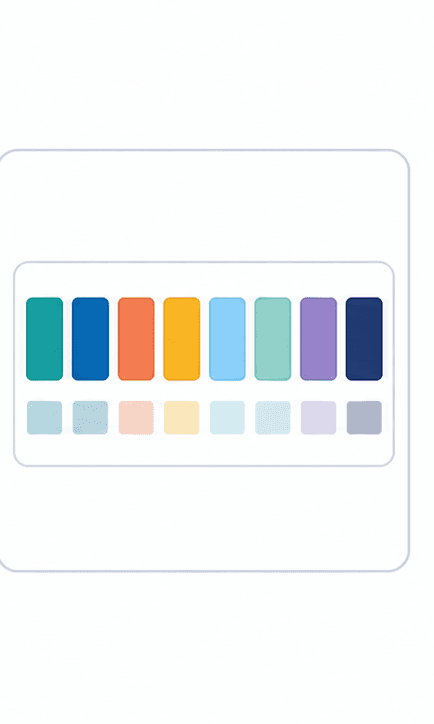
Palette Output
The extracted result should turn the visual into a usable set of swatches rather than leaving color locked inside the image.

Applied Palette
Preview the palette in a simple design surface to see whether the sampled colors still work together outside the photo.

Source and Swatches
Keep the original image beside the final swatches so the palette can be adjusted if lighting or shadows skewed the samples.
About Color Picker from Image
Color Picker from Image is designed for designers, creators, store owners, and developers sampling colors from real photos. It provides a clean, immediate interface to help you with a beach photo, outfit, product image, or brand visual has colors that should become a palette.
The output is usable color values for design systems, landing pages, thumbnails, or product graphics. This allows you to quickly complete your work, review results side-by-side, and save your processed files instantly.
Quality, compatibility, and practical tradeoffs
Color Picker from Image is most reliable when the source image is clean and the final destination is clear. Decide whether the output needs smaller size, exact dimensions, visible detail, or editing flexibility before downloading.
Sample several points before finalizing a palette; one pixel rarely represents the whole image. Before downloading, check lighting, shadows, and white balance because photo conditions can shift sampled colors so the final asset is ready for the actual page, platform, document, or handoff where it will be used.
When to Use Color Picker from Image
The same tool can solve different problems depending on who is using it and where the finished asset needs to go.
Real photo workflow
A beach photo, outfit, product image, or brand visual has colors that should become a palette.
Developer tasks
Handle supporting image jobs like metadata, Base64, placeholders, ratios, and visual checks.
Design systems
Prepare small assets that support layout testing, color decisions, and handoff documentation.
Website QA
Inspect images before publishing so dimensions, metadata, and favicon details do not surprise the team.
Color Picker from Image Quality Checklist
A fast image tool is most useful when the output is checked against the real publishing context. Use this checklist before treating the result as final.
For high-value work, compare the downloaded output with the original and keep both files until the asset has been approved in its final destination. That small habit prevents avoidable quality loss across repeated exports.
Confirm the source file is the best available version.
Check dimensions, format, and file size against the final channel.
Review the preview for blur, artifacts, cropped text, and color shifts.
Keep the original file until the output is approved.
Color Picker from Image FAQ
Short answers to the questions users usually ask before they commit to a file workflow.
Is Color Picker from Image free to use?
Yes. The color picker from image page is free to access and does not require signup.
Does Color Picker from Image work in the browser?
Color Picker from Image processes your images directly in your browser using secure client-side APIs, so you can preview and download the output instantly without uploading files to any server.
What should I check before using Color Picker from Image output?
lighting, shadows, and white balance because photo conditions can shift sampled colors. Confirm the source file is the best available version. Check dimensions, format, and file size against the final channel. Review the preview for blur, artifacts, cropped text, and color shifts. Keep the original file until the output is approved.
Who is Color Picker from Image best for?
Color Picker from Image is best for designers, creators, store owners, and developers sampling colors from real photos. It is especially useful when a beach photo, outfit, product image, or brand visual has colors that should become a palette.
Will my original file be changed?
No. Imgny workflows create a new output or guidance path, so the original file on your device should remain available.
When is Color Picker from Image the right choice?
Color Picker from Image is most reliable when the source image is clean and the final destination is clear. Decide whether the output needs smaller size, exact dimensions, visible detail, or editing flexibility before downloading.
Related Image Tools
Move straight into the next step of the workflow with related conversion, compression, editing, or publishing tools.


Learn More About This Topic
Pair the tool with educational guides so users can understand the format choice, the quality tradeoffs, and the next best workflow.

PNG vs JPG: Which Format Should You Use?
PNG is best for transparency and sharp graphics. JPG is best for everyday photos, lighter uploads, and faster publishing when transparency is not needed.
WebP vs PNG: Which Is Better for Web?
WebP is usually better for lightweight website delivery, while PNG is still the safer choice for transparency, crisp graphics, and editing workflows.

How to Resize an Image Online in 30 Seconds
Resize an image online by choosing the final destination, entering the right dimensions, previewing sharpness, and downloading a separate copy.