How to Resize an Image Online in 30 Seconds quick reference
| Decision Area | Recommended Focus | Why It Matters |
|---|---|---|
| Website hero | Resize to layout width | Avoid uploading a huge original when the page displays a smaller image. |
| Instagram post | Use square preset | Keeps the post ready for feed layouts. |
| YouTube thumbnail | Use 1280 by 720 | Matches the standard thumbnail aspect ratio. |
| Profile image | Crop first | Keeps the face centered before final resizing. |
Recommended Imgny Tools
Act on This Guide
Explore edittools →
Resize for the destination
The correct image size depends on where the image will appear. A blog card, profile photo, Instagram square, YouTube thumbnail, product listing, and document header all need different dimensions.
Start with the destination instead of guessing. That keeps the image from being stretched, blurry, or cropped unexpectedly after upload.
Use the best source image
Begin with the largest clean original you have. Making a large photo smaller usually works well, but making a tiny photo much bigger cannot create real detail.
For people, family photos, beach shots, and product images, check the subject after resizing. Faces and important objects should still look sharp.
Keep crop and resize separate
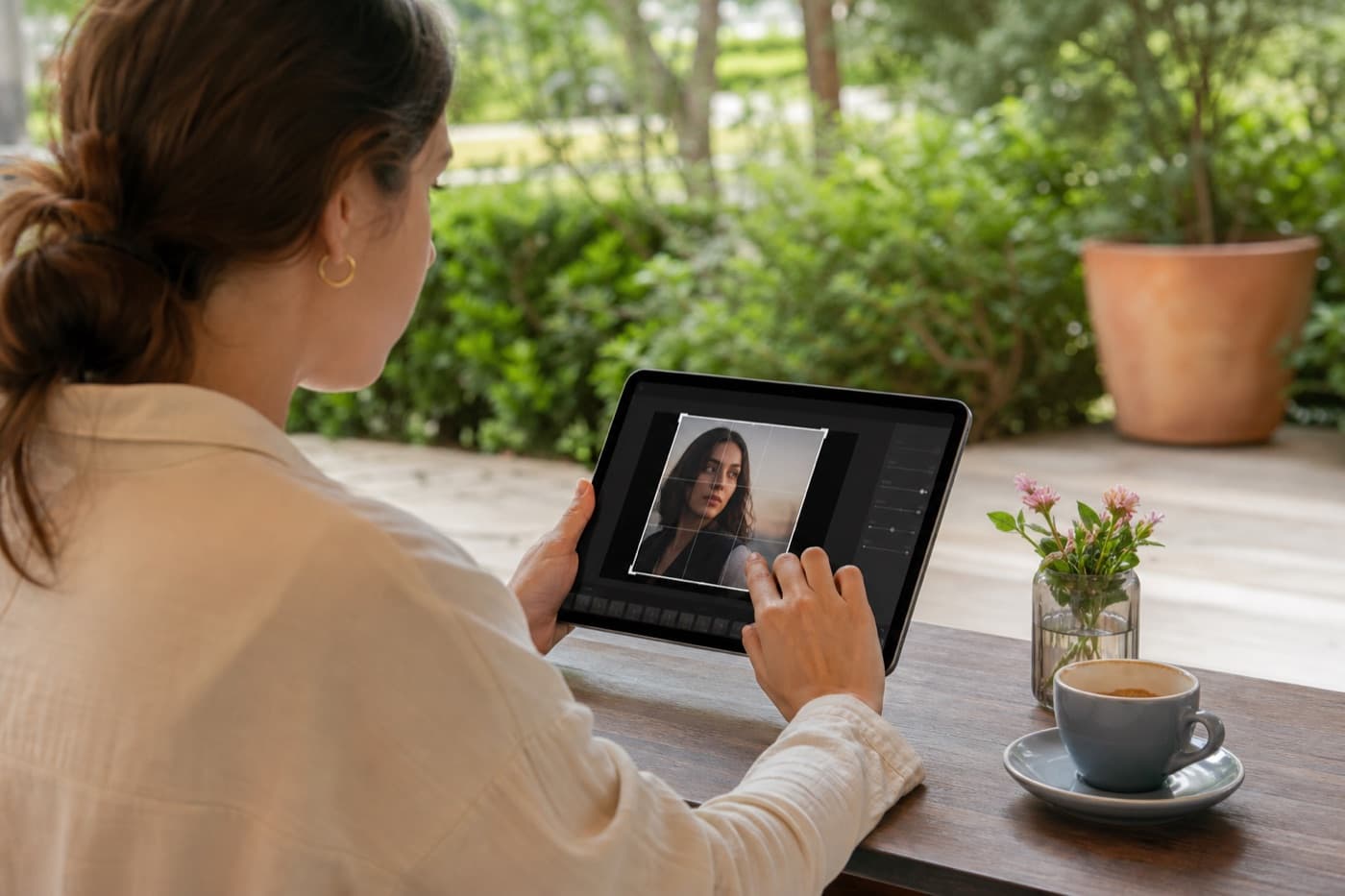
Cropping changes the frame. Resizing changes the pixel dimensions. Many workflows need both, but it helps to make the framing decision first and the final size decision second.
If a platform uses a strict aspect ratio, crop to that shape before resizing to the exact pixel requirement.
Recommended Imgny workflow
Upload the image, enter the target dimensions, preview the output, and download a new copy. Keep the original source untouched for future versions.
For social posts, use the platform-specific resizer when available so the dimensions and aspect ratio are already matched to the channel.
Frequently Asked Questions
Does resizing reduce image quality?
Downsizing usually keeps quality strong. Upsizing can look soft because the tool has to stretch limited source detail.
Should I crop before resizing?
If the final aspect ratio matters, crop first and resize second. That prevents awkward framing after export.
What size should I choose?
Use the size required by the destination: your website layout, social platform, marketplace, form, or document.