
Screenshots and digital text
Clean screenshots usually extract better than angled phone photos. Crop away unrelated UI, keep text horizontal, and avoid shrinking the image before OCR.
Turn images and screenshots into editable text with clear OCR workflows and use-case guidance.
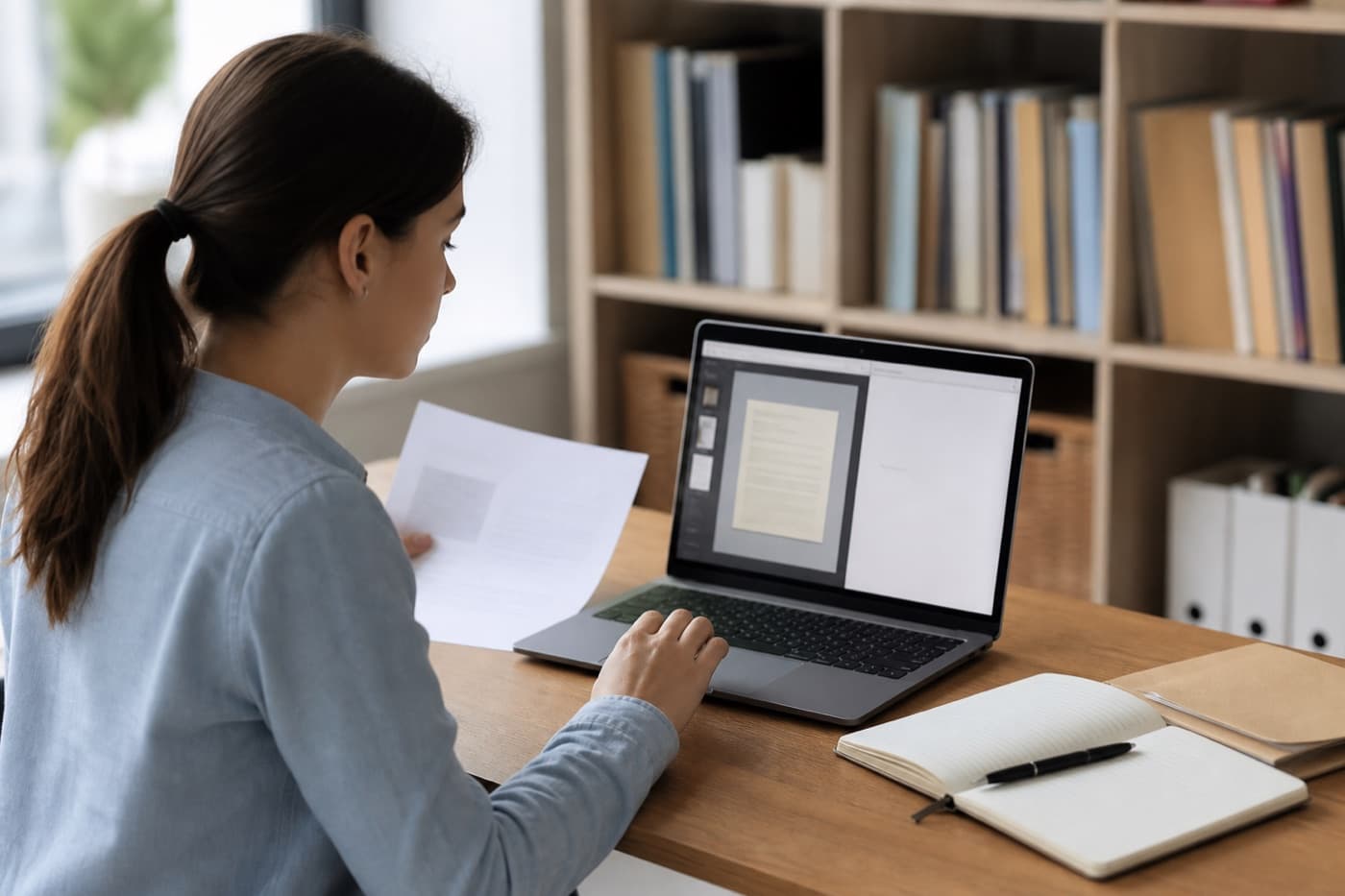
OCR tools solve a very specific but high-value problem: turning text trapped inside images into text you can copy, search, and reuse. Imgny provides dedicated utilities for image-to-text and screenshot-to-text extraction.
Click a button below to launch a fast, browser-native tool.
OCR tools solve a very specific but high-value problem: turning text trapped inside images into text you can copy, search, and reuse. Imgny provides dedicated utilities for image-to-text and screenshot-to-text extraction.
OCR is often less about archival digitization and more about speed. People use it to pull text from screenshots, scanned notes, receipts, PDFs, and photographed documents when retyping would be slow or error-prone.
That makes clarity especially important. Users need to know what affects OCR accuracy, including contrast, language, blur, and layout complexity.
Sharp, high-contrast images with clean fonts are easier to extract than noisy screenshots or angled phone photos. The best OCR pages help users improve results with simple prep steps like cropping, contrast adjustments, or higher-resolution sources.
Imgny's OCR content is structured around those practical constraints, which helps both usability and extraction success rates.
OCR tools are useful when text is trapped inside images or screenshots. Accuracy depends heavily on the source image, so preparation often matters as much as the extraction step.
Clean screenshots usually extract better than angled phone photos. Crop away unrelated UI, keep text horizontal, and avoid shrinking the image before OCR.
Scanned documents work best with high contrast and flat alignment. If a photo is dark or skewed, adjust the image first so the OCR engine has clearer letter shapes.
OCR output should be checked manually, especially for names, numbers, tables, and short labels where one wrong character matters.
Crop to the text area before extraction.
Use high-contrast, non-blurry source images.
Proofread names, numbers, and tables manually.
Keep line breaks and formatting expectations realistic.
Practical answers about ocr workflows, quality tradeoffs, and how to choose the right tool.
OCR stands for optical character recognition. It is the process of detecting letters and words inside an image and turning them into editable text.
Clean screenshots, flat scans, and high-contrast photos typically produce the best results. Blurry, low-light, or heavily stylized images are harder to process accurately.
Some advanced systems can handle neat handwriting, but typed text remains far more reliable. Most OCR workflows work best with printed or digital fonts.
OCR tools are best when the image task matches a clear production outcome: compatibility, file size, platform sizing, text extraction, document sharing, or workflow cleanup.
Yes. Imgny is designed around browser-first workflows wherever the task can be handled cleanly on the frontend.
Yes. The pages are written for practical personal, creator, ecommerce, marketing, and internal business workflows.
Start with the final destination of the file, then choose the tool that matches the required format, dimensions, quality level, or platform constraint.
No. The core Imgny experience is built for quick online use without installing a desktop editor for everyday image operations.
No. Imgny workflows create a new output for download, so the original source file remains unchanged on your device.
Review the preview, dimensions, format, transparency, file size, and any platform-specific requirements before publishing or sharing the result.
Most image jobs move through more than one step. These category links keep users within three clicks of the next practical workflow.
Convert images between popular formats like WebP, PNG, and JPG instantly.
Reduce image file size for web performance, email, ecommerce, and sharing workflows.
Resize and crop images online with quick browser-based editing tools.
AI-powered workflows for automatic background removal and high-quality image upscaling.