
PNG to JPG Converter - Free Online
Convert PNG to JPG and reduce file size. Use PNG to JPG Converter when a family, travel, or product photo is saved as a heavy png and needs a lighter jpg version for web use.
The page is built for bloggers, ecommerce teams, and anyone preparing large PNG photos for fast sharing. It explains the right setting, shows what to inspect, and keeps the original file separate from the finished copy.
Preview & Output Workspace
🔒 Files are handled with privacy-first browser workflows where supported.
⚡ Most standard image operations complete in seconds on modern devices.
📁 Core export flows are designed for quick preview, review, and download.
Why Use Imgny's PNG to JPG Converter?
Strong tool pages need more than an upload box. They need clear benefits, realistic workflow guidance, and quick next steps.
Convert in the browser
PNG to JPG Converter keeps the working flow close to the page: choose a file, adjust a JPG export when the image is photographic and does not need transparency, preview the result, and download a new copy while the original remains untouched.
Format guidance built in
The page explains why the target format matters, including compatibility, transparency, compression behavior, and whether the output should be treated as a delivery copy or archive copy.
Connected workflow loop
The goal is a smaller JPG that is easier to upload, email, and publish while the original PNG stays untouched. Imgny also points to nearby tools so the same image can continue into compression, conversion, resizing, review, or publishing without dead ends.
How to Use PNG to JPG Converter in 3 Steps
Keep the workflow simple: upload, process, confirm, and download.
Upload the source file for PNG to JPG Converter.
Export a browser-supported JPG copy for a smaller JPG that is easier to upload, email, and publish while the original PNG stays untouched.
Open the preview, check transparency and visual detail, then download the converted file.
PNG to JPG Converter Visual Examples
These simple white-background diagrams show the source file, the browser action, the output, and the way the result gets used in real work.
Heavy PNG Source
This starts with a PNG photo that is visually fine but too large for faster publishing, sharing, or upload limits.
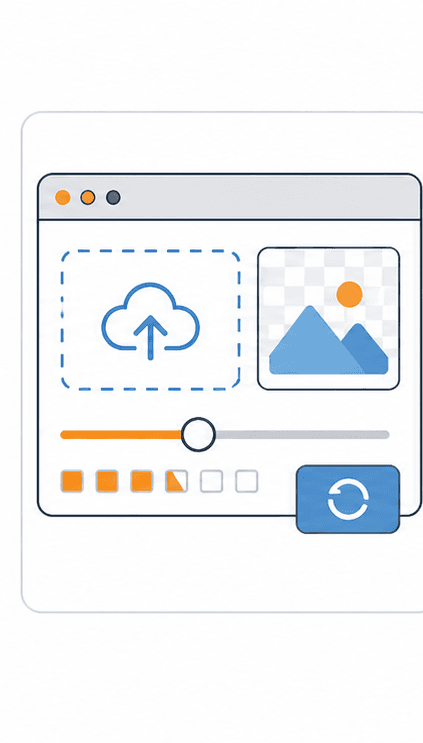
JPG Export Settings
Set the conversion target to JPG and choose a quality level that trims weight without making the image look brittle.
Lighter JPG Result
The new JPG should stay natural in gradients, faces, and product edges while dropping unnecessary file weight.
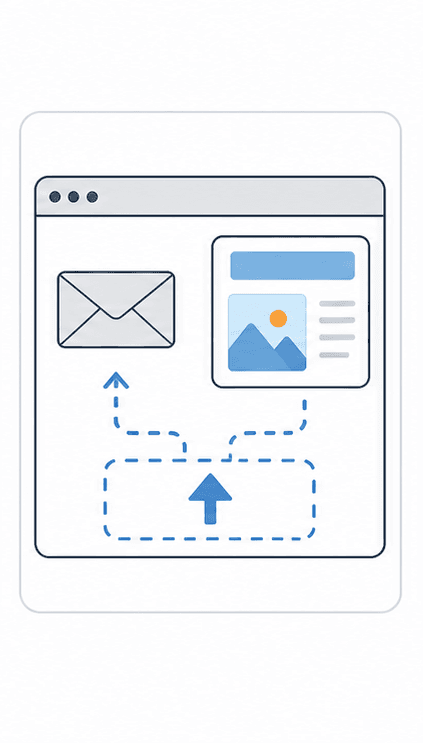
Publishing Preview
Preview the result in the kind of page, email, or listing where a lightweight photographic file is the better fit.
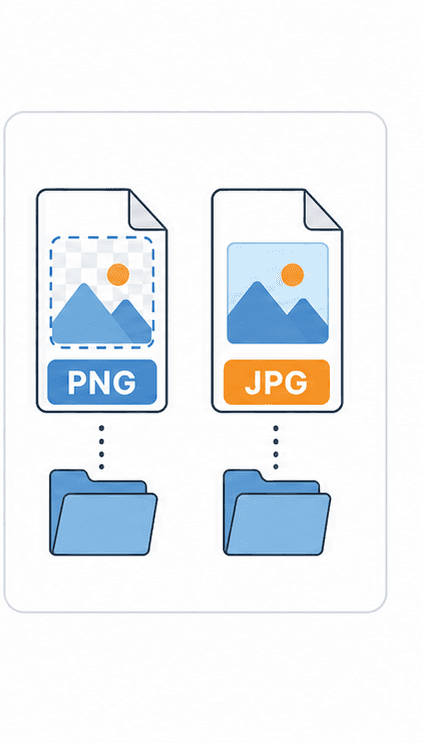
PNG and JPG Copies
Keep PNG for transparency-sensitive assets and use the JPG version when the goal is smaller size and faster delivery.
About PNG to JPG Converter
PNG to JPG Converter is designed for bloggers, ecommerce teams, and anyone preparing large PNG photos for fast sharing. It provides a clean, immediate interface to help you with a family, travel, or product photo is saved as a heavy png and needs a lighter jpg version for web use.
The output is a smaller JPG that is easier to upload, email, and publish while the original PNG stays untouched. This allows you to quickly complete your work, review results side-by-side, and save your processed files instantly.
Quality, compatibility, and practical tradeoffs
This PNG to JPG workflow is useful when the destination needs JPG behavior, but the source PNG should still be kept for future edits.
JPG does not support transparency, so keep PNG for logos, cutouts, and screenshots with sharp flat color. Before downloading, check skin tones, skies, gradients, and product edges where aggressive JPG compression can show artifacts so the final asset is ready for the actual page, platform, document, or handoff where it will be used.
When to Use PNG to JPG Converter
The same tool can solve different problems depending on who is using it and where the finished asset needs to go.
Real photo workflow
A family, travel, or product photo is saved as a heavy PNG and needs a lighter JPG version for web use.
Web publishing
Use PNG to JPG Converter before adding assets to landing pages, blog posts, docs, or product pages.
Design handoff
Prepare files in a shape that collaborators and downstream tools can open without confusion.
Marketing production
Create campaign-ready image copies while preserving the original source for later edits.
PNG to JPG Converter Quality Checklist
A fast image tool is most useful when the output is checked against the real publishing context. Use this checklist before treating the result as final.
For high-value work, compare the downloaded output with the original and keep both files until the asset has been approved in its final destination. That small habit prevents avoidable quality loss across repeated exports.
Keep the original PNG file.
Check whether JPG preserves the transparency or quality you need.
Open the output in the destination app before deleting anything.
Use a separate compression step if the converted file is still too large.
PNG to JPG Converter FAQ
Short answers to the questions users usually ask before they commit to a file workflow.
Is PNG to JPG Converter free to use?
Yes. The png to jpg converter page is free to access and does not require signup.
Does PNG to JPG Converter work in the browser?
PNG to JPG Converter processes your images directly in your browser using secure client-side APIs, so you can preview and download the output instantly without uploading files to any server.
What should I check before using PNG to JPG Converter output?
skin tones, skies, gradients, and product edges where aggressive JPG compression can show artifacts. Keep the original PNG file. Check whether JPG preserves the transparency or quality you need. Open the output in the destination app before deleting anything. Use a separate compression step if the converted file is still too large.
Who is PNG to JPG Converter best for?
PNG to JPG Converter is best for bloggers, ecommerce teams, and anyone preparing large PNG photos for fast sharing. It is especially useful when a family, travel, or product photo is saved as a heavy png and needs a lighter jpg version for web use.
Will my original file be changed?
No. Imgny workflows create a new output or guidance path, so the original file on your device should remain available.
When should I convert PNG to JPG?
Use this conversion when the destination needs JPG compatibility or delivery behavior. Keep the PNG source if you may need to edit or export again later.
Related Image Tools
Move straight into the next step of the workflow with related conversion, compression, editing, or publishing tools.

Learn More About This Topic
Pair the tool with educational guides so users can understand the format choice, the quality tradeoffs, and the next best workflow.

WebP vs PNG: Which Is Better for Web?
WebP is usually better for lightweight website delivery, while PNG is still the safer choice for transparency, crisp graphics, and editing workflows.
PNG vs JPG: Which Format Should You Use?
PNG is best for transparency and sharp graphics. JPG is best for everyday photos, lighter uploads, and faster publishing when transparency is not needed.

How to Compress JPG Images Without Losing Quality
Compress JPG images by balancing file size and visible quality, then inspect faces, text, skies, and product edges before using the final copy.