
Cropping and framing
Crop when the subject needs a tighter frame or a platform-specific aspect ratio. Leave extra safe space around faces, product edges, logos, and text so later previews do not cut them off.
Handle the most common edits in-browser, from resizing and cropping to borders, overlays, and simple enhancements.
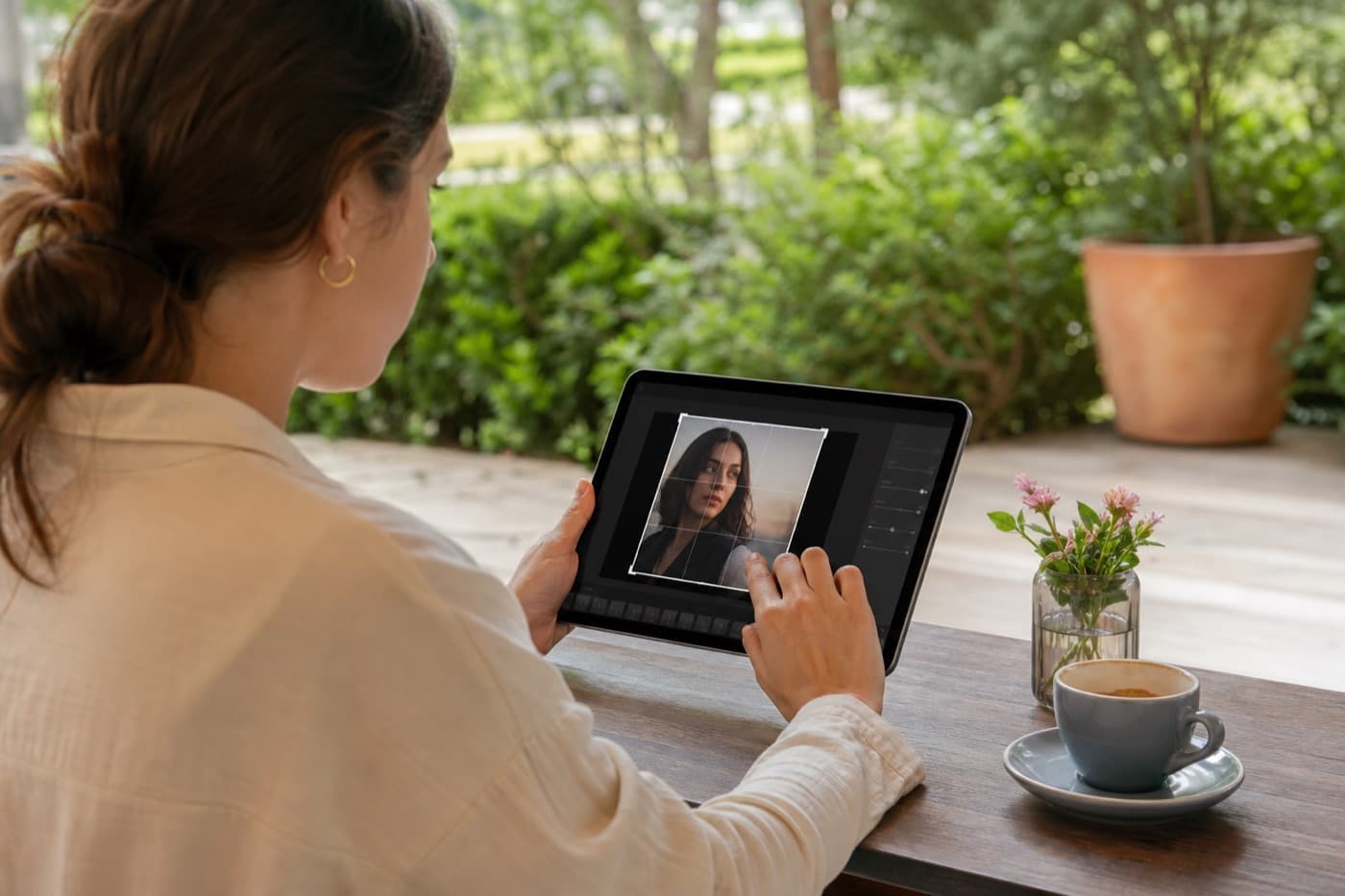
The edit category brings together the basic operations almost every team needs before an image goes live. These tools are intentionally direct: open the task, make the change, and move on.
Click a button below to launch a fast, browser-native tool.
The edit category brings together the basic operations almost every team needs before an image goes live. These tools are intentionally direct: open the task, make the change, and move on.
A large share of image editing on the web is functional rather than artistic. We focus on essential resizing and cropping tools because those are the edits users reach for most often to prepare files for publishing.
Because these edits are often repeated, our interface is designed to stay clean and straightforward, allowing you to crop and resize your assets in seconds.
Editing tools can look trivial until they fail at the moment a user needs them. Clear preview states, undo-friendly options, and export guidance matter more than visual gimmicks.
The edit category keeps those fundamentals visible while pairing each tool with educational content that supports usability at the same time.
Editing tools handle the small production changes that happen before publishing. The launch set focuses on crop and resize because those two tasks support most early image workflows.
Crop when the subject needs a tighter frame or a platform-specific aspect ratio. Leave extra safe space around faces, product edges, logos, and text so later previews do not cut them off.
Resize oversized images before compressing them. This avoids wasting bytes on pixels that will never be displayed.
Every crop or resize should support the final placement. Avoid changing dimensions randomly without checking the destination requirement.
Check the final aspect ratio before export.
Keep important text away from crop edges.
Preview at mobile size, not only desktop size.
Keep a clean source version before exporting.
Practical answers about edit workflows, quality tradeoffs, and how to choose the right tool.
Yes. Imgny's editing category provides quick browser-based resize and crop tools that run locally without software installation.
Cropping removes part of the image frame, while resizing changes the overall dimensions. They are often used together when preparing assets for social media or web layouts.
No. All image operations are processed strictly in your local browser memory, ensuring your privacy.
Edit tools are best when the image task matches a clear production outcome: compatibility, file size, platform sizing, text extraction, document sharing, or workflow cleanup.
Yes. Imgny is designed around browser-first workflows wherever the task can be handled cleanly on the frontend.
Yes. The pages are written for practical personal, creator, ecommerce, marketing, and internal business workflows.
Start with the final destination of the file, then choose the tool that matches the required format, dimensions, quality level, or platform constraint.
No. The core Imgny experience is built for quick online use without installing a desktop editor for everyday image operations.
No. Imgny workflows create a new output for download, so the original source file remains unchanged on your device.
Review the preview, dimensions, format, transparency, file size, and any platform-specific requirements before publishing or sharing the result.
Most image jobs move through more than one step. These category links keep users within three clicks of the next practical workflow.
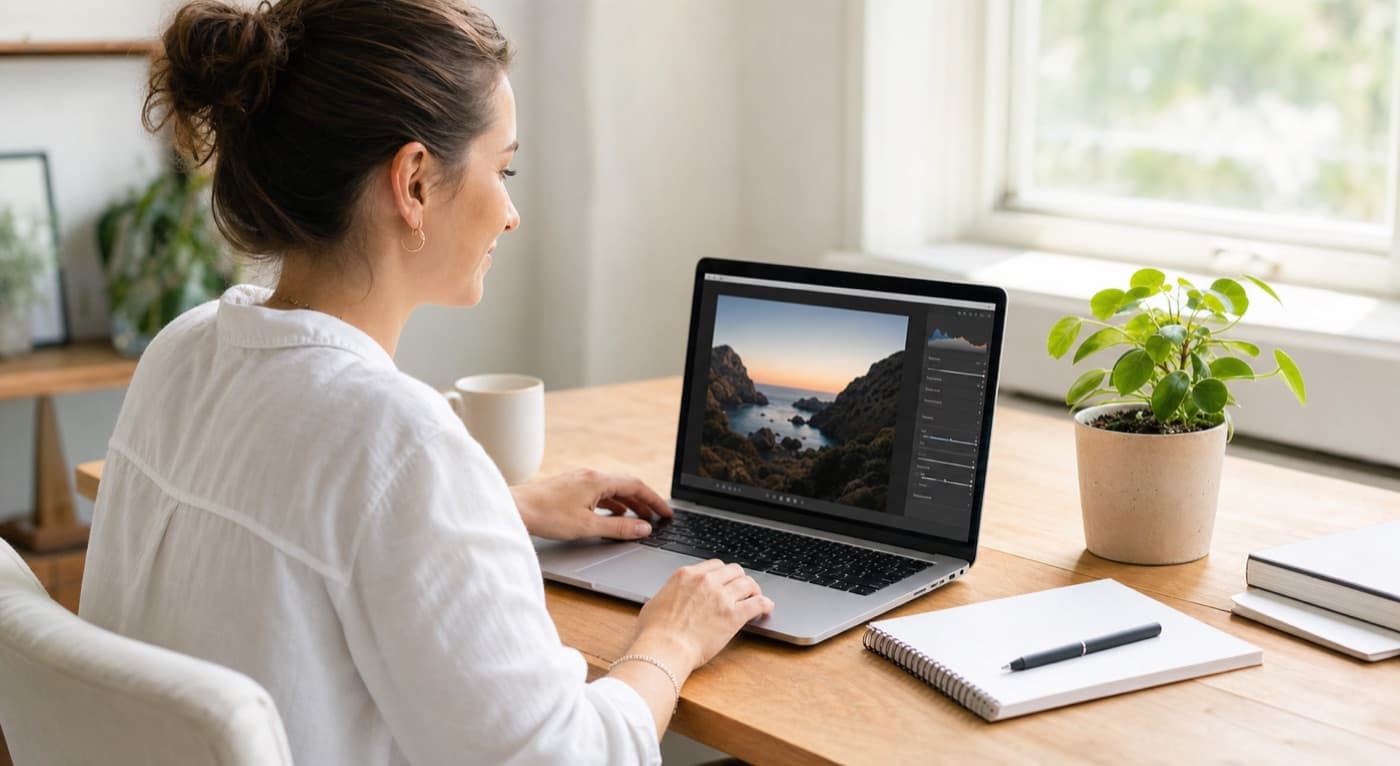
Convert images between popular formats like WebP, PNG, and JPG instantly.
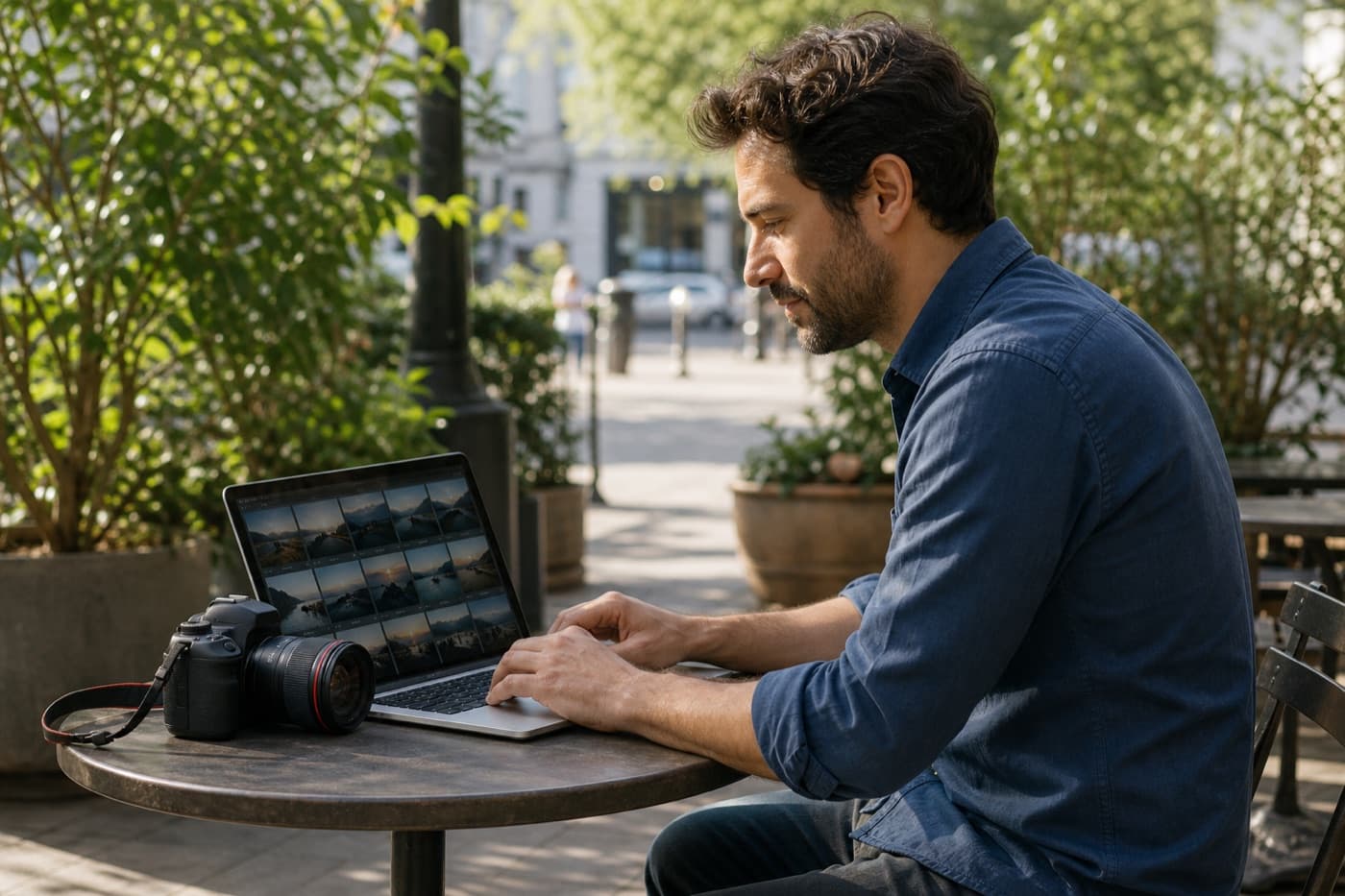
Reduce image file size for web performance, email, ecommerce, and sharing workflows.

AI-powered workflows for automatic background removal and high-quality image upscaling.
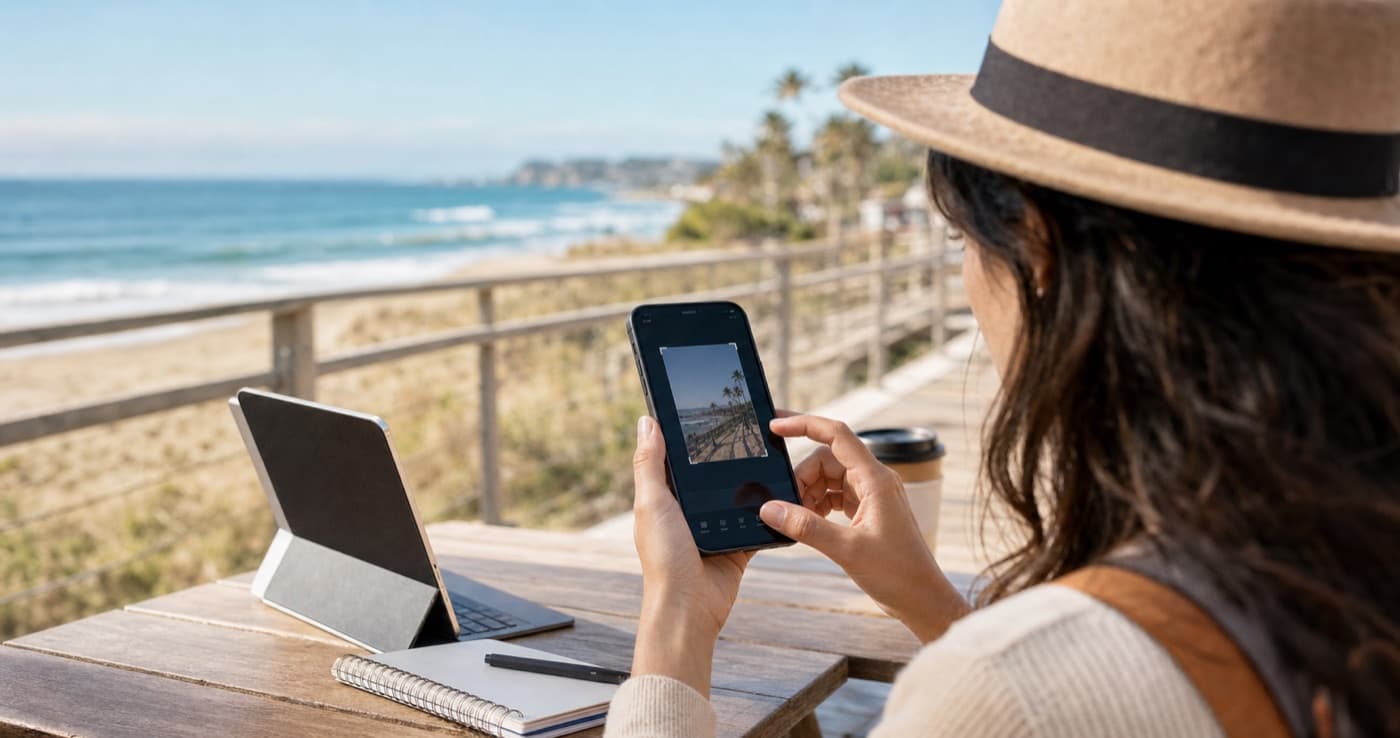
Resize and prepare images for Instagram posts and YouTube thumbnails.